Component
Sticker Peeling Effect in Framer
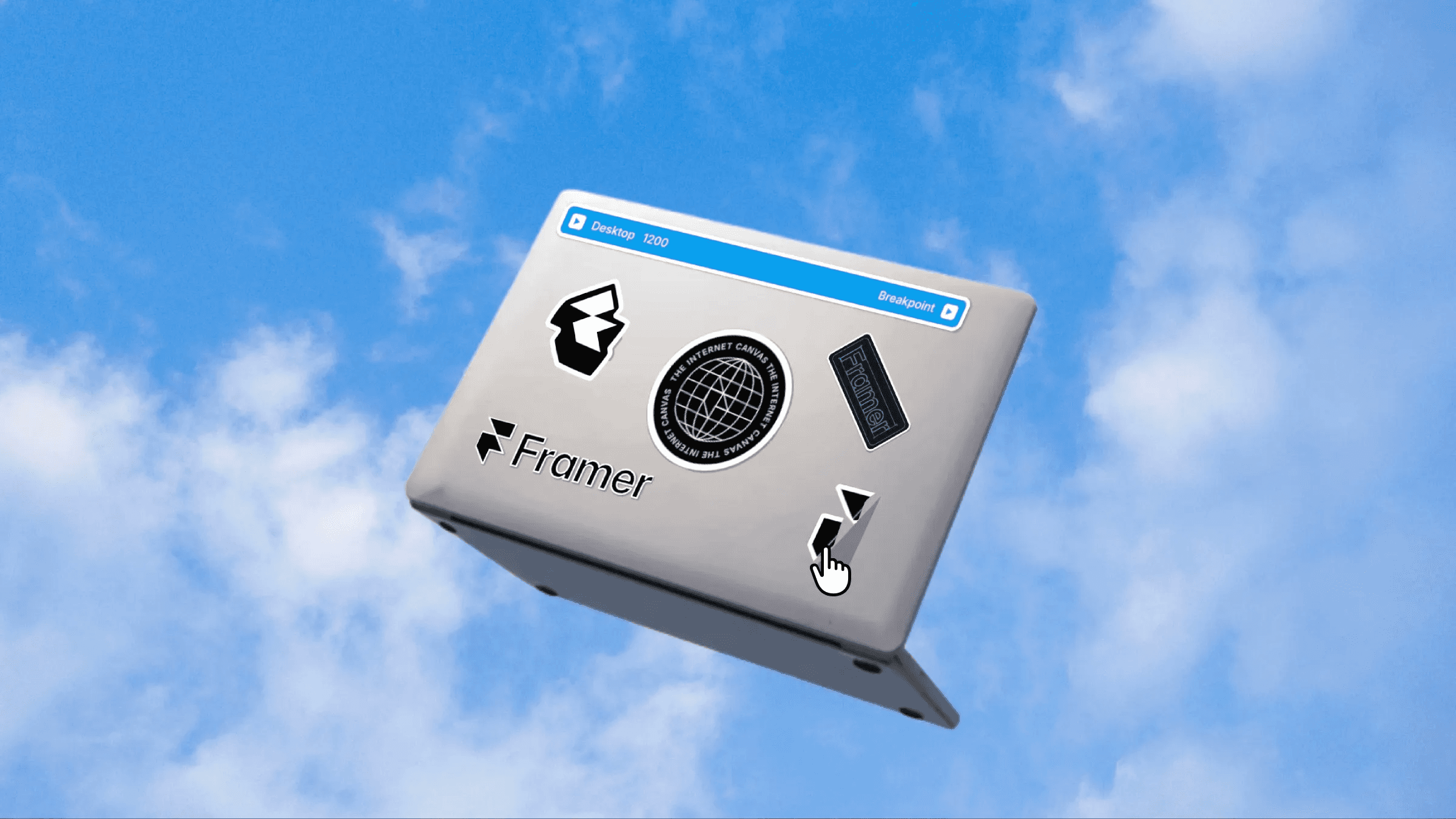
This is a sticker peeling effect recreated in Framer from the Framer sticker pack, built to curl and lift images on hover with realistic depth, lighting, and shadow control. You can copy it into your projects to bring stickers to life with a tactile, interactive peel effect.



About the resource
To use the Sticker Peeling component, start by choosing the Image you want to appear on the front of the sticker. This is the surface that will curl and peel when someone hovers over it.
Next, pick a curl style using the Mode control. Semicircle gives you a smooth, arcing peel, while Spiral creates a tighter curl that wraps in on itself. In the Animation section, you can control how the sticker moves between its default and hover states. Use Animation, Show to preview either the flat state or the fully curled state directly on the canvas while you’re setting things up.
You can shape the peel in detail by adjusting the curl amount, radius, and fold start for both the initial and final states. This lets you decide how flat the sticker looks by default and how dramatic the peel feels on hover. Use Direction to choose which edge peels up, so the interaction aligns naturally with your layout.
To add depth, position the light using Light X and Light Y and adjust the Shadow value to control how strong the shadow appears, or turn it off completely. Back Color defines what you see on the underside of the sticker when it curls, which works well for a paper-like effect or a custom backing color. Finally, use the Transition settings to fine-tune how the sticker curls and uncurls, so the interaction feels smooth and intentional. The Refresh prop helps when a sticker doesn’t render correctly in the Framer canvas due to browser limits. If this happens, toggle Refresh in the right panel to make the sticker you’re editing visible again. Any canvas errors won’t affect preview or the published site, where stickers will always display correctly.
About the resource
To use the Sticker Peeling component, start by choosing the Image you want to appear on the front of the sticker. This is the surface that will curl and peel when someone hovers over it.
Next, pick a curl style using the Mode control. Semicircle gives you a smooth, arcing peel, while Spiral creates a tighter curl that wraps in on itself. In the Animation section, you can control how the sticker moves between its default and hover states. Use Animation, Show to preview either the flat state or the fully curled state directly on the canvas while you’re setting things up.
You can shape the peel in detail by adjusting the curl amount, radius, and fold start for both the initial and final states. This lets you decide how flat the sticker looks by default and how dramatic the peel feels on hover. Use Direction to choose which edge peels up, so the interaction aligns naturally with your layout.
To add depth, position the light using Light X and Light Y and adjust the Shadow value to control how strong the shadow appears, or turn it off completely. Back Color defines what you see on the underside of the sticker when it curls, which works well for a paper-like effect or a custom backing color. Finally, use the Transition settings to fine-tune how the sticker curls and uncurls, so the interaction feels smooth and intentional. The Refresh prop helps when a sticker doesn’t render correctly in the Framer canvas due to browser limits. If this happens, toggle Refresh in the right panel to make the sticker you’re editing visible again. Any canvas errors won’t affect preview or the published site, where stickers will always display correctly.
About the resource
To use the Sticker Peeling component, start by choosing the Image you want to appear on the front of the sticker. This is the surface that will curl and peel when someone hovers over it.
Next, pick a curl style using the Mode control. Semicircle gives you a smooth, arcing peel, while Spiral creates a tighter curl that wraps in on itself. In the Animation section, you can control how the sticker moves between its default and hover states. Use Animation, Show to preview either the flat state or the fully curled state directly on the canvas while you’re setting things up.
You can shape the peel in detail by adjusting the curl amount, radius, and fold start for both the initial and final states. This lets you decide how flat the sticker looks by default and how dramatic the peel feels on hover. Use Direction to choose which edge peels up, so the interaction aligns naturally with your layout.
To add depth, position the light using Light X and Light Y and adjust the Shadow value to control how strong the shadow appears, or turn it off completely. Back Color defines what you see on the underside of the sticker when it curls, which works well for a paper-like effect or a custom backing color. Finally, use the Transition settings to fine-tune how the sticker curls and uncurls, so the interaction feels smooth and intentional. The Refresh prop helps when a sticker doesn’t render correctly in the Framer canvas due to browser limits. If this happens, toggle Refresh in the right panel to make the sticker you’re editing visible again. Any canvas errors won’t affect preview or the published site, where stickers will always display correctly.
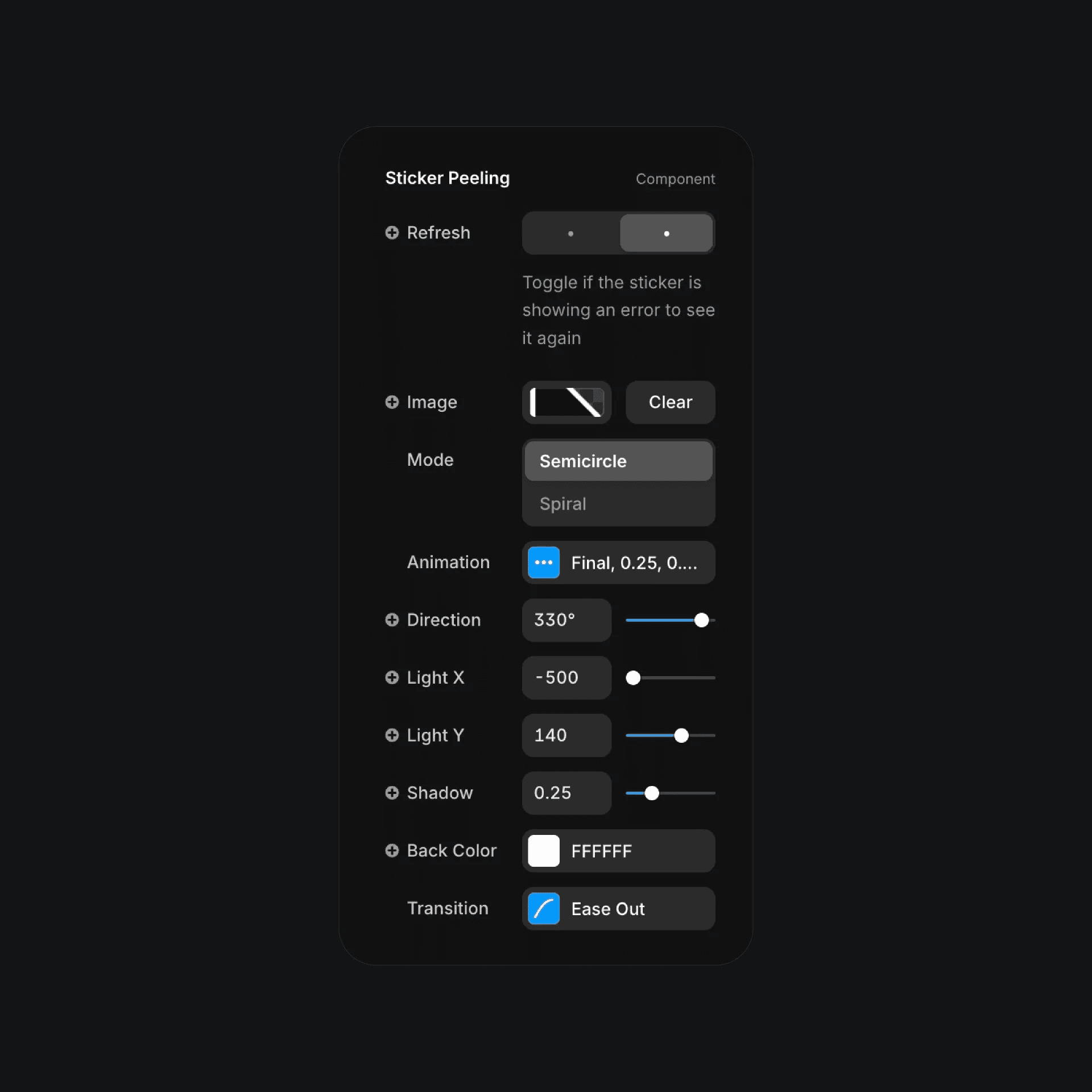
The sticker peeling component properties in Framer.
The sticker peeling component properties in Framer.
The sticker peeling component properties in Framer.