Component
Line Connections Component for Framer
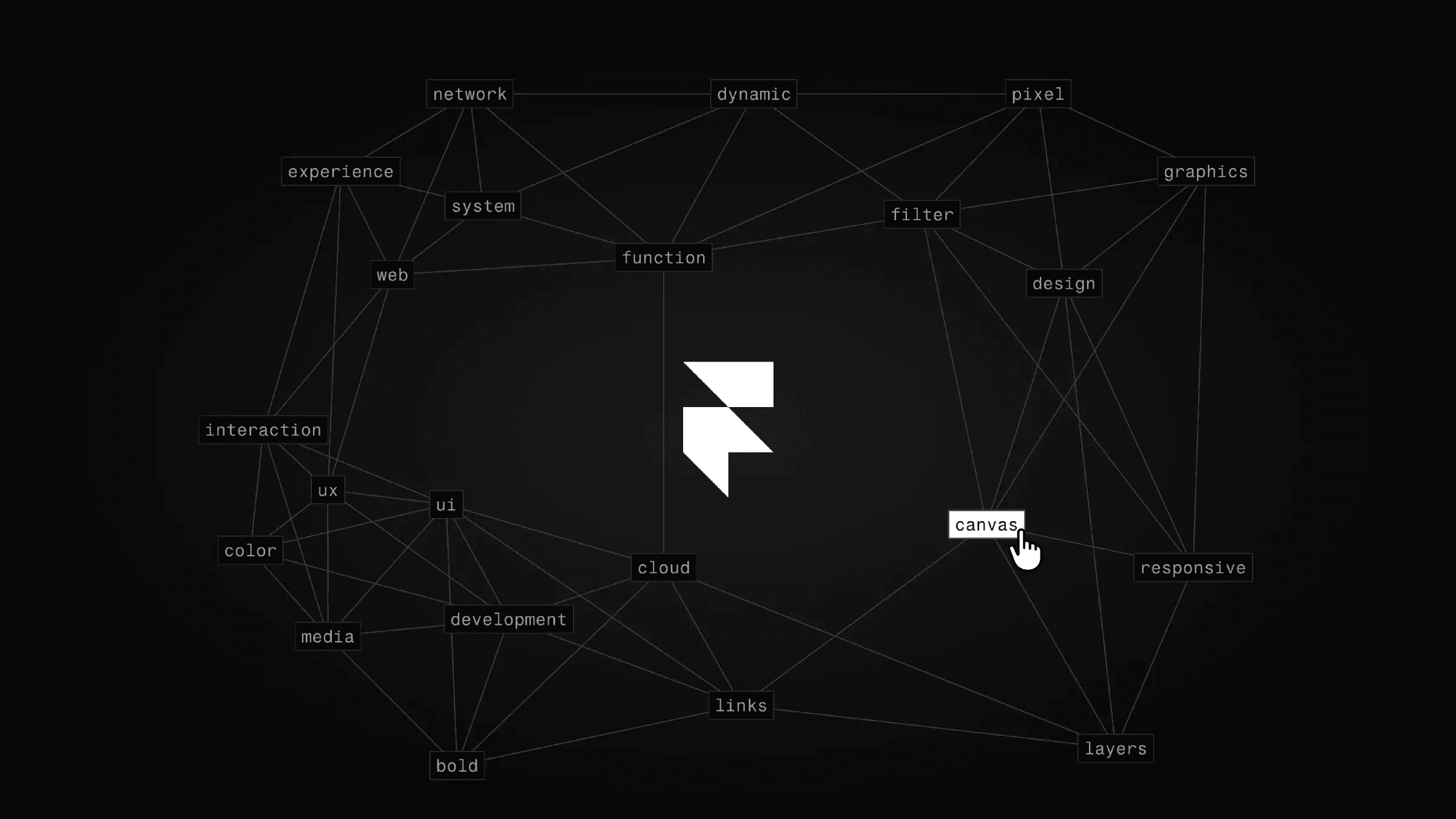
This is a Line Connections component for Framer, rebuilt from Col’s original work. It links elements with animated lines. Drop it into your project, tweak the connection style, color, and thickness, and bring structure and movement to your layouts.




About the resource
To use the Line Connections component, start by placing it on the canvas alongside the elements you want to connect. Choose a Connection mode based on the effect you want: use All to connect every element to every other element, or switch to Closer to link each element only to its nearest neighbors. When Closer is selected, increase or reduce the Count value to control how many connections each element makes.
Next, adjust the Z-Index to decide where the lines sit in the layout. Raise the value if you want the lines to appear above other elements, or use a negative value to push them behind the connected items. Then set the Color of the lines using a hex value, rgba, or a Framer color token to match your design system. Finally, tweak the Thickness to make the lines bold and noticeable or thin and subtle, depending on how strong you want the visual connection to feel.
About the resource
To use the Line Connections component, start by placing it on the canvas alongside the elements you want to connect. Choose a Connection mode based on the effect you want: use All to connect every element to every other element, or switch to Closer to link each element only to its nearest neighbors. When Closer is selected, increase or reduce the Count value to control how many connections each element makes.
Next, adjust the Z-Index to decide where the lines sit in the layout. Raise the value if you want the lines to appear above other elements, or use a negative value to push them behind the connected items. Then set the Color of the lines using a hex value, rgba, or a Framer color token to match your design system. Finally, tweak the Thickness to make the lines bold and noticeable or thin and subtle, depending on how strong you want the visual connection to feel.
About the resource
To use the Line Connections component, start by placing it on the canvas alongside the elements you want to connect. Choose a Connection mode based on the effect you want: use All to connect every element to every other element, or switch to Closer to link each element only to its nearest neighbors. When Closer is selected, increase or reduce the Count value to control how many connections each element makes.
Next, adjust the Z-Index to decide where the lines sit in the layout. Raise the value if you want the lines to appear above other elements, or use a negative value to push them behind the connected items. Then set the Color of the lines using a hex value, rgba, or a Framer color token to match your design system. Finally, tweak the Thickness to make the lines bold and noticeable or thin and subtle, depending on how strong you want the visual connection to feel.
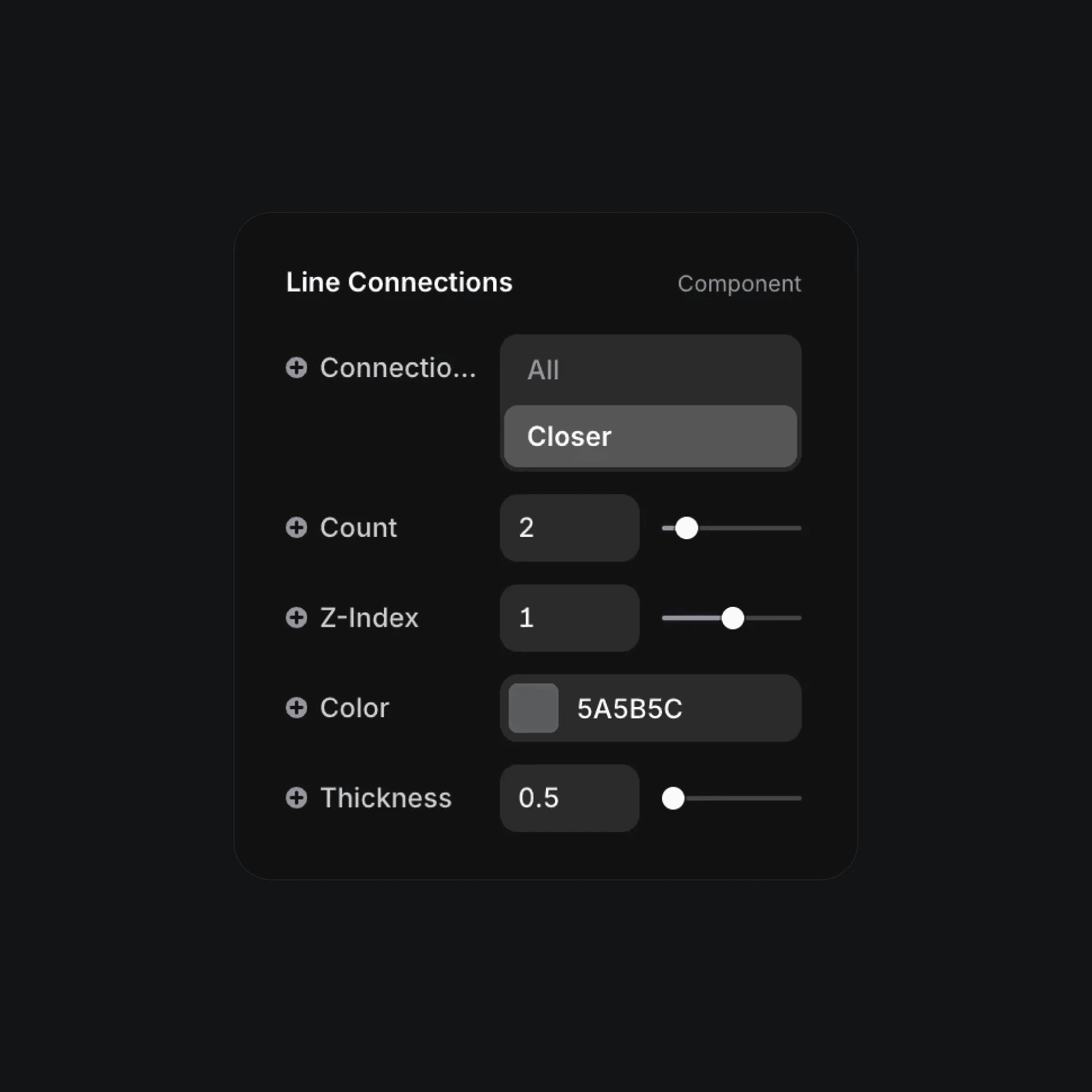
The line connections component properties in Framer.
The line connections component properties in Framer.
The line connections component properties in Framer.