Component
3D Letter Testimonials in Framer
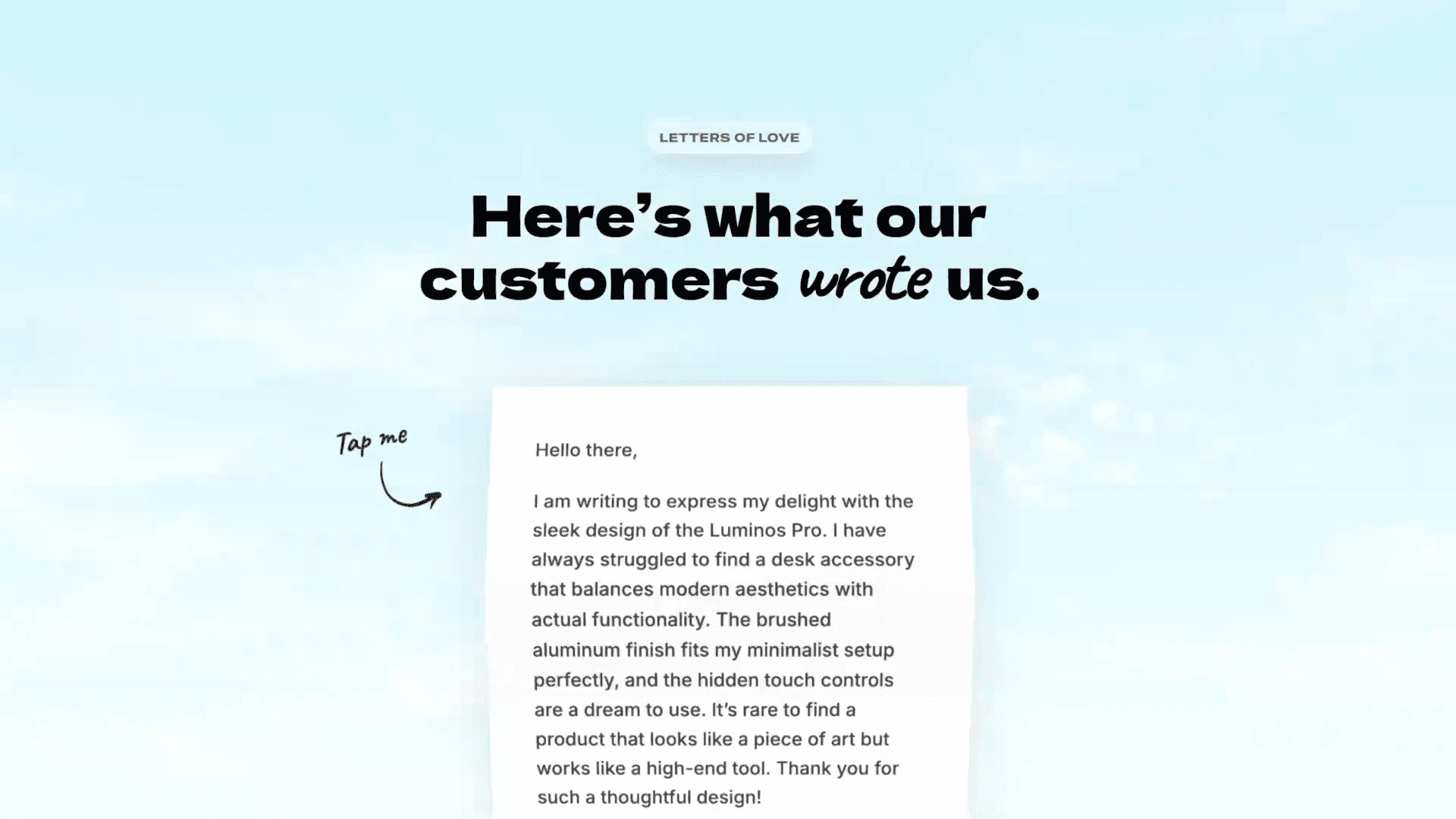
This is a letters testimonial component inspired by Atilla’s work, created in Framer as a fully customizable and easy-to-use component. Feel free to copy this into your own projects and have fun playing around with it—take your project to the next level!



About the resource
Your first questions is probably: “Okay, but how do I use this component?”
Here’s the step by step setup process for you.
First of all, you’ll notice the Entires property on the right panel after selecting the component on your canvas. This is where you’re going to add all of your testimonials. You can add as many as you want.
About the resource
Your first questions is probably: “Okay, but how do I use this component?”
Here’s the step by step setup process for you.
First of all, you’ll notice the Entires property on the right panel after selecting the component on your canvas. This is where you’re going to add all of your testimonials. You can add as many as you want.
About the resource
Your first questions is probably: “Okay, but how do I use this component?”
Here’s the step by step setup process for you.
First of all, you’ll notice the Entires property on the right panel after selecting the component on your canvas. This is where you’re going to add all of your testimonials. You can add as many as you want.
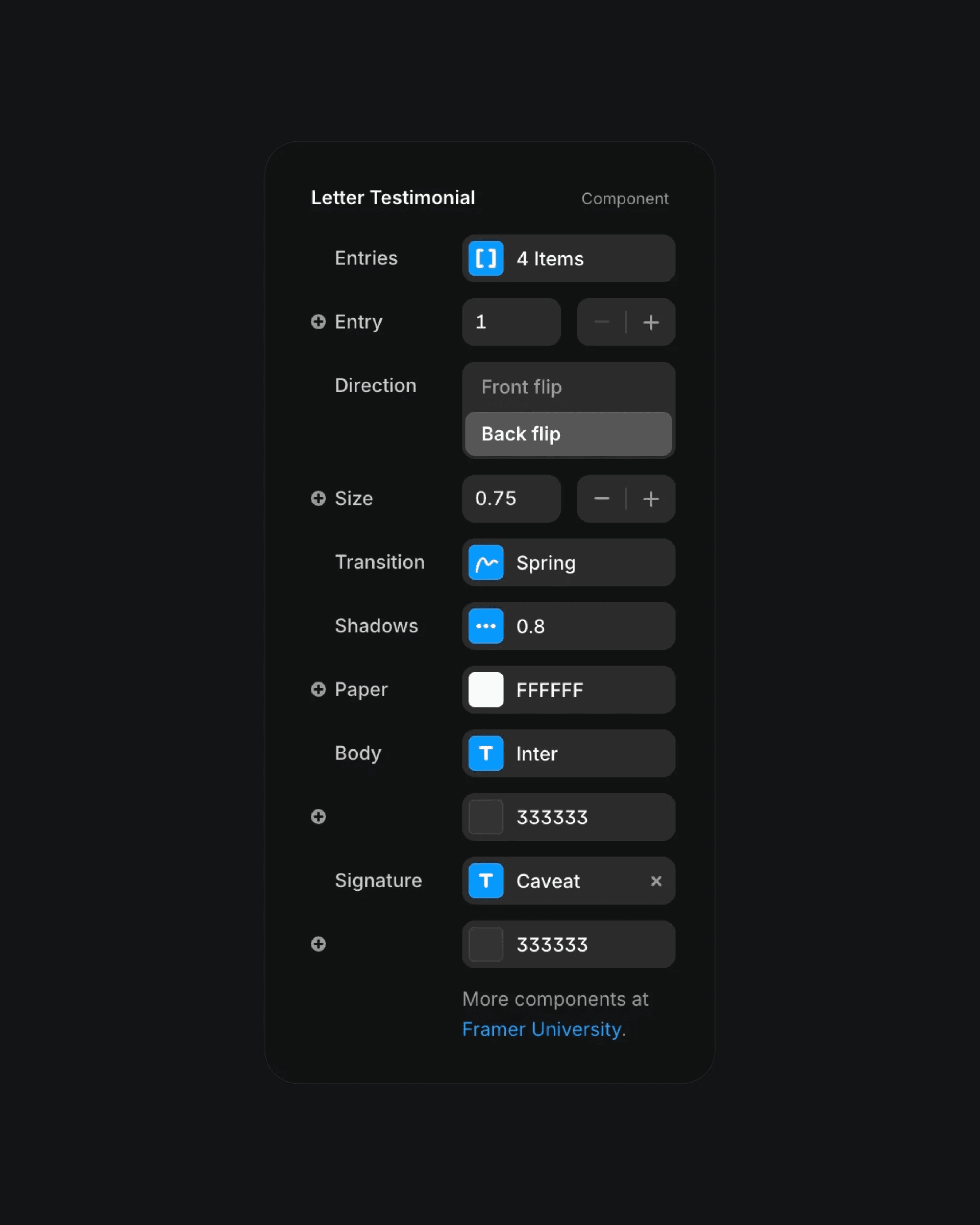
The properties of the Letter Testimonials component.
The properties of the Letter Testimonials component.
The properties of the Letter Testimonials component.
Once done, wrap the component in a frame, and turn that frame into a component. Inside the component create a few variants, depending on how many entries you have. You need one variant for each entry.
Once all variants are added, go through each of them, and change the Entry property on each. This is how you set which entry is visible on each variant.
Now it’s time to create the interaction.
Once done, wrap the component in a frame, and turn that frame into a component. Inside the component create a few variants, depending on how many entries you have. You need one variant for each entry.
Once all variants are added, go through each of them, and change the Entry property on each. This is how you set which entry is visible on each variant.
Now it’s time to create the interaction.
Once done, wrap the component in a frame, and turn that frame into a component. Inside the component create a few variants, depending on how many entries you have. You need one variant for each entry.
Once all variants are added, go through each of them, and change the Entry property on each. This is how you set which entry is visible on each variant.
Now it’s time to create the interaction.
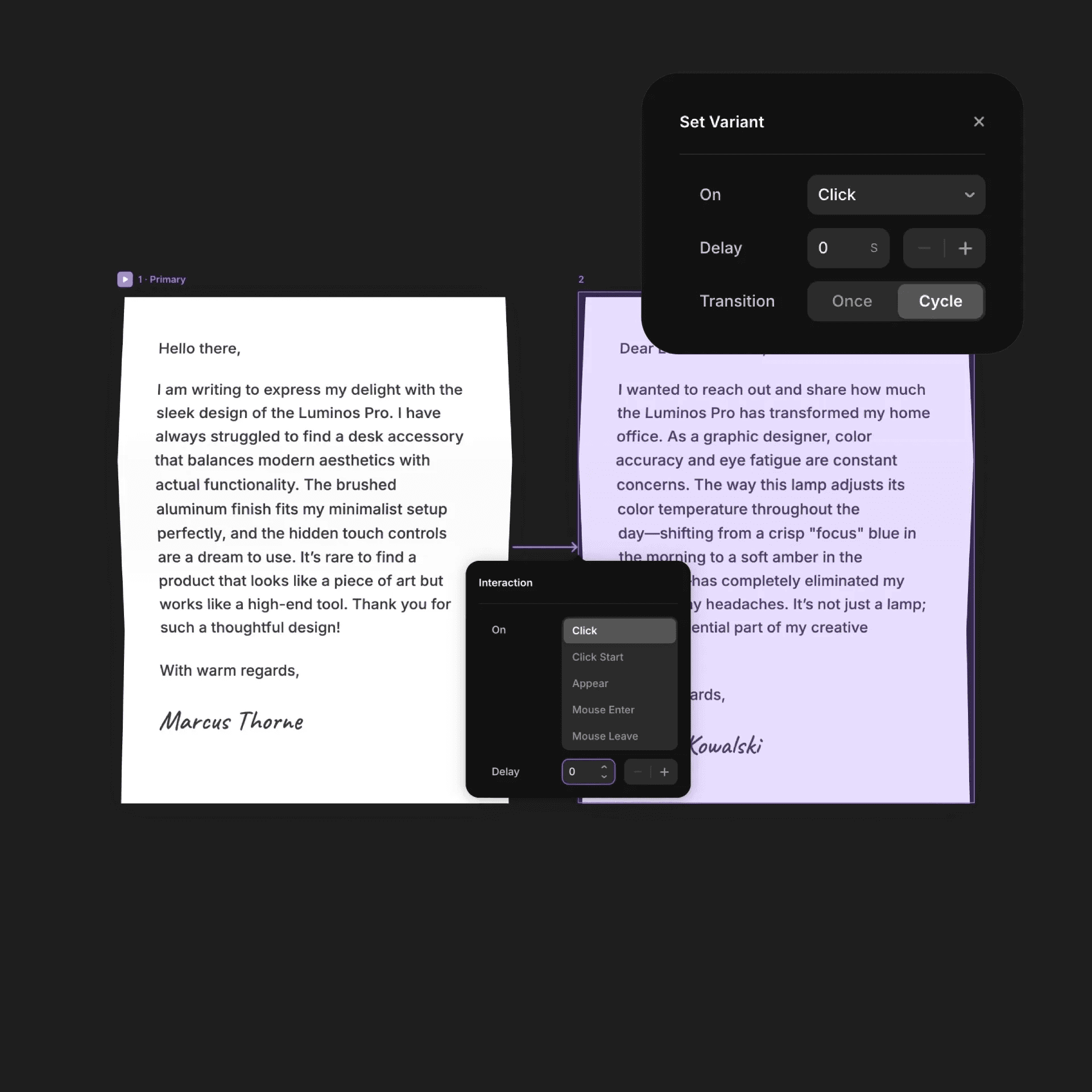
Interaction setup within the component.
Interaction setup within the component.
Interaction setup within the component.
Simply connect the first and second variant with a click interaction. Then on the top right, select this newly added interaction and set Transition to “Cycle.”
That’s it! Now when you’re clicking this component, it will go from one variant to the other, switching the visible entry with a beautiful flip effect.
Simply connect the first and second variant with a click interaction. Then on the top right, select this newly added interaction and set Transition to “Cycle.”
That’s it! Now when you’re clicking this component, it will go from one variant to the other, switching the visible entry with a beautiful flip effect.
Simply connect the first and second variant with a click interaction. Then on the top right, select this newly added interaction and set Transition to “Cycle.”
That’s it! Now when you’re clicking this component, it will go from one variant to the other, switching the visible entry with a beautiful flip effect.