Animation
Magnifying Hero Text Animation in Framer
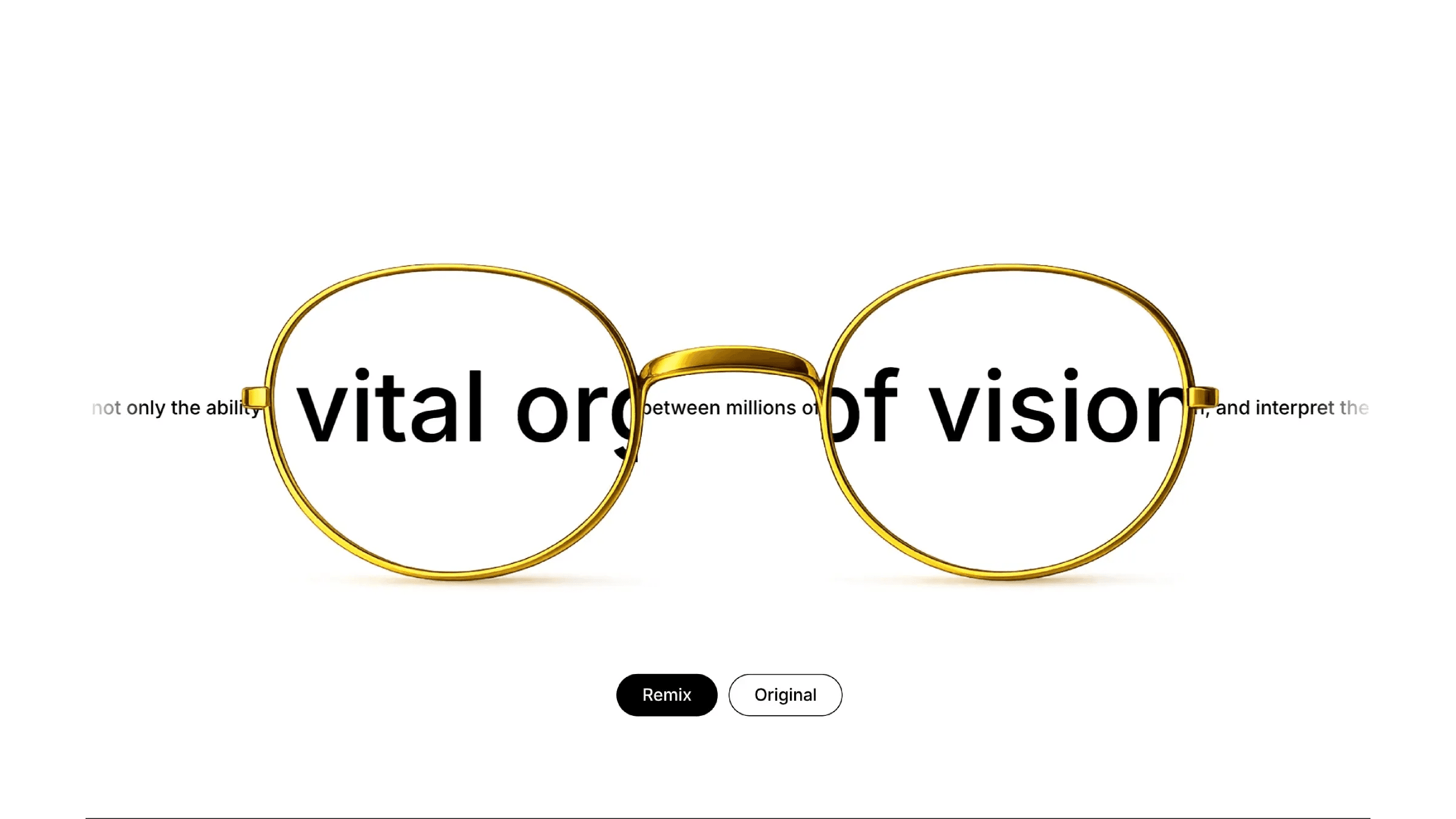
This is a magnifying hero text animation recreated in Framer from Kosta’s original work. The effect is built using layered text and synced looping motion to create the illusion of text being zoomed through a glass lens. Feel free to remix the project to explore how this interaction is structured and controlled inside Framer.


About the resource
To create this, I layered two identical text layers inside a text wrapper frame with overflow set to hidden and scaled one to act as the magnified version. By syncing their loop offsets, the text moves together while appearing zoomed inside the lenses.
I start by placing two identical text layers inside a single wrapper frame. Think of this wrapper as the window that shows the text. I set this frame to overflow hidden so only the part of the text inside it is visible. One text layer stays normal, and the second one is scaled up to become the magnified version.
I then repeat this setup across five full-width sections and make sure every text block is aligned to the left edge of the screen. This part really matters, if the text isn’t lined up perfectly, the magnification illusion breaks. I also set the main wrapper that holds everything to a fixed width so the movement stays consistent as the page scrolls.
Once everything is aligned, I add a loop effect to the text wrapper and use the offset controls to move the text horizontally. I keep the transition linear so the motion feels steady and natural. The key trick is that the magnified text layer gets an offset that’s almost five times higher than the normal one, so both move together but at different visual scales. I also add a bit of extra spacing to the magnified text so the larger letters don’t crash into each other.
After that, I just place the glasses on top. Because the scaled text is already moving underneath in the right way, it looks like the words are being zoomed in directly through the lenses, even though it’s just two synced text layers doing the work.
About the resource
To create this, I layered two identical text layers inside a text wrapper frame with overflow set to hidden and scaled one to act as the magnified version. By syncing their loop offsets, the text moves together while appearing zoomed inside the lenses.
I start by placing two identical text layers inside a single wrapper frame. Think of this wrapper as the window that shows the text. I set this frame to overflow hidden so only the part of the text inside it is visible. One text layer stays normal, and the second one is scaled up to become the magnified version.
I then repeat this setup across five full-width sections and make sure every text block is aligned to the left edge of the screen. This part really matters, if the text isn’t lined up perfectly, the magnification illusion breaks. I also set the main wrapper that holds everything to a fixed width so the movement stays consistent as the page scrolls.
Once everything is aligned, I add a loop effect to the text wrapper and use the offset controls to move the text horizontally. I keep the transition linear so the motion feels steady and natural. The key trick is that the magnified text layer gets an offset that’s almost five times higher than the normal one, so both move together but at different visual scales. I also add a bit of extra spacing to the magnified text so the larger letters don’t crash into each other.
After that, I just place the glasses on top. Because the scaled text is already moving underneath in the right way, it looks like the words are being zoomed in directly through the lenses, even though it’s just two synced text layers doing the work.
About the resource
To create this, I layered two identical text layers inside a text wrapper frame with overflow set to hidden and scaled one to act as the magnified version. By syncing their loop offsets, the text moves together while appearing zoomed inside the lenses.
I start by placing two identical text layers inside a single wrapper frame. Think of this wrapper as the window that shows the text. I set this frame to overflow hidden so only the part of the text inside it is visible. One text layer stays normal, and the second one is scaled up to become the magnified version.
I then repeat this setup across five full-width sections and make sure every text block is aligned to the left edge of the screen. This part really matters, if the text isn’t lined up perfectly, the magnification illusion breaks. I also set the main wrapper that holds everything to a fixed width so the movement stays consistent as the page scrolls.
Once everything is aligned, I add a loop effect to the text wrapper and use the offset controls to move the text horizontally. I keep the transition linear so the motion feels steady and natural. The key trick is that the magnified text layer gets an offset that’s almost five times higher than the normal one, so both move together but at different visual scales. I also add a bit of extra spacing to the magnified text so the larger letters don’t crash into each other.
After that, I just place the glasses on top. Because the scaled text is already moving underneath in the right way, it looks like the words are being zoomed in directly through the lenses, even though it’s just two synced text layers doing the work.
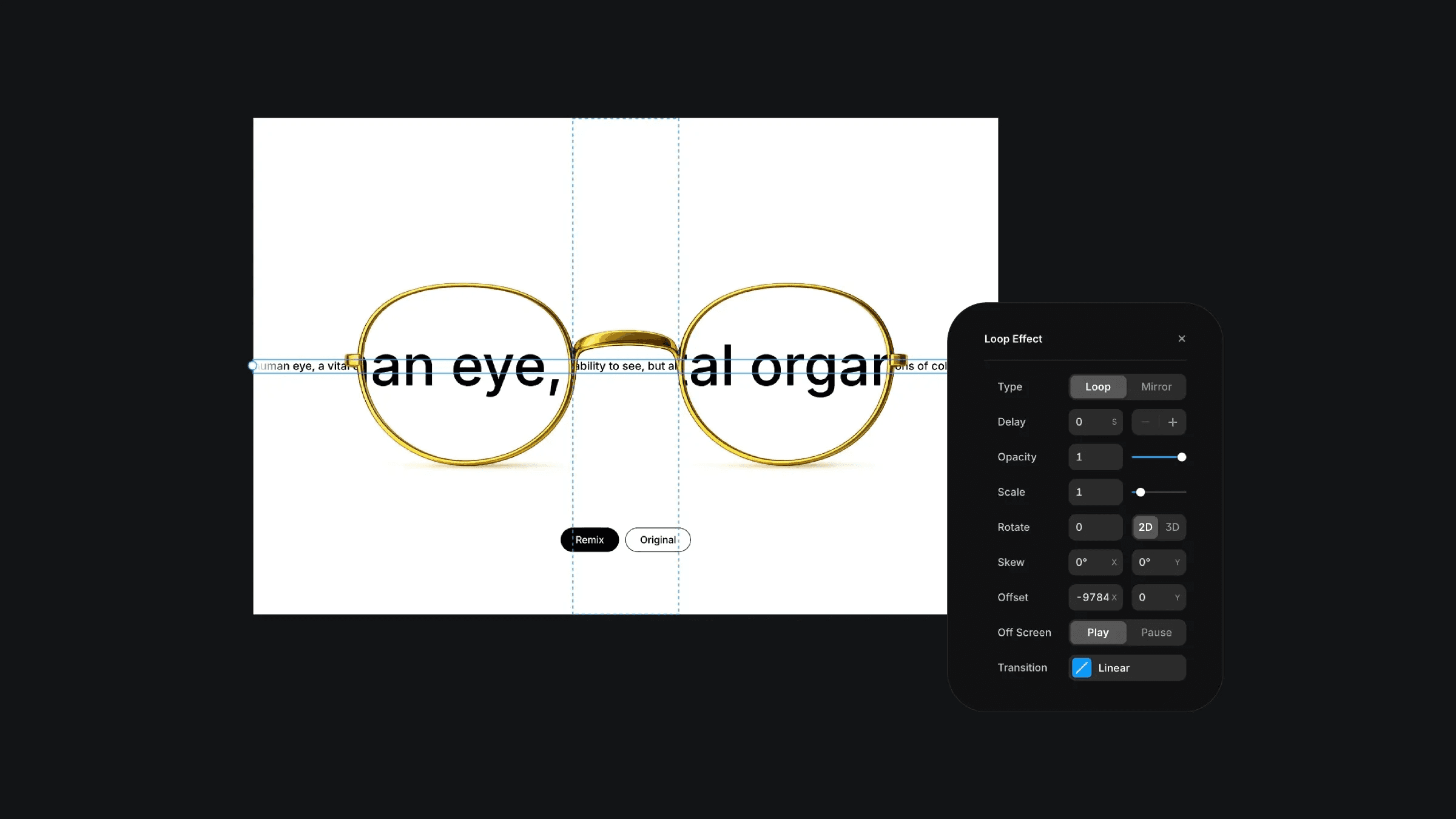
The loop effect applied on the text wrapper frame with offset.
The loop effect applied on the text wrapper frame with offset.
The loop effect applied on the text wrapper frame with offset.